

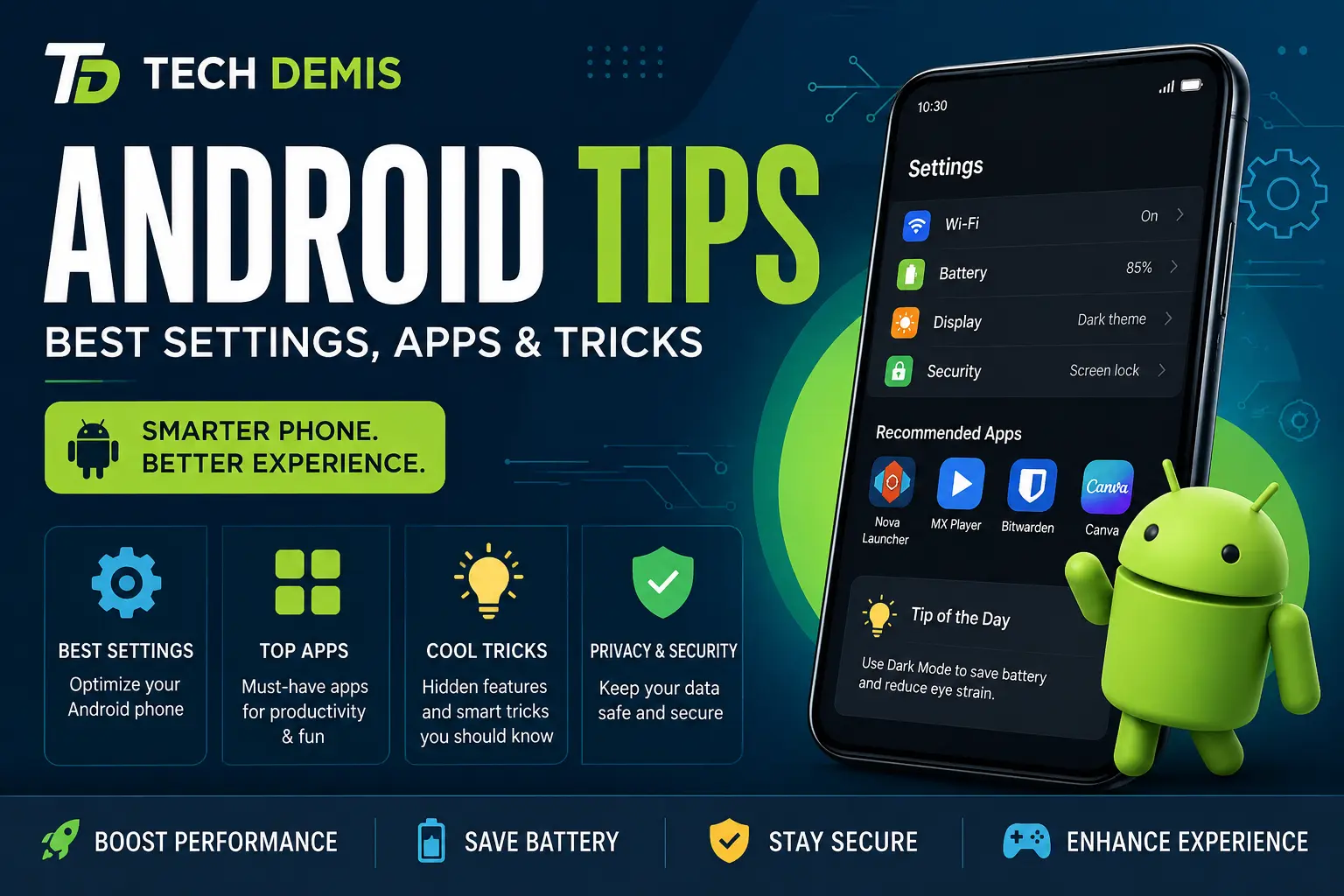
Your Android phone is capable of far more than most people ever discover. Buried under layers of menus and default configurations sits a genuinely powerful operating system — one that, with the right Android tips, can run faster, last longer on a single charge, protect your data more effectively, and make your daily routine noticeably smoother. This guide from Tech Demis pulls together the best Android settings, the most useful Android apps, and a collection of practical Android tricks that actually make a difference in 2026.
Whether you’re running a Pixel, a Samsung Galaxy, a OnePlus, or any other Android 16-powered device, most of the Android tips below will apply. We’ll walk through display and battery settings, security and privacy configuration, the apps worth installing right now, and a set of hidden Android features that even long-time users tend to miss. By the end, you’ll have a clear roadmap for turning your phone into a genuinely optimized, personalized tool — not just a device running on factory defaults.
Why Android Tips Actually Matter in 2026
Android has changed a lot over the past few years. With Android 16 now widely rolled out across Pixel, Samsung, and most major manufacturers, phones ship with a redesigned Material 3 Expressive interface, smarter notification grouping, and deeper on-device AI features. But manufacturers still configure devices with broad, one-size-fits-all defaults. That’s where good Android tips come in: a handful of small adjustments can meaningfully change how your phone feels to use every day.
Think about it this way — the average person unlocks their phone dozens of times a day. If your settings are fighting you (slow animations, an overstuffed notification shade, a battery that dies by 4 p.m.), that friction adds up fast. The Android tips in this article are chosen specifically because they solve real, everyday annoyances rather than obscure edge cases nobody encounters.
Best Android Settings to Change First
Before you install a single new app, it’s worth spending ten minutes in your Settings app. These are the Android settings that deliver the biggest improvement for the least effort.
1. Turn On Adaptive Battery and Adaptive Brightness
Head to Settings > Battery and make sure Adaptive Battery is switched on. This feature learns your usage patterns and limits background activity for apps you rarely open, which can meaningfully extend battery life without you noticing any difference in performance. Pair it with Adaptive Brightness under Settings > Display, which automatically adjusts screen brightness based on your surroundings and past preferences — one of the simplest Android settings that saves both battery and eye strain.
2. Customize Your Notification Settings
Go to Settings > Notifications and review which apps are allowed to send alerts, and how. Android now lets you set individual apps to Silent, so they still land in your notification shade without buzzing or lighting up your screen. This is one of the most underrated Android tips for people who feel like their phone never stops interrupting them. You can also enable notification history so you never lose track of an alert you accidentally swiped away.
3. Set Up Digital Wellbeing
Digital Wellbeing & Parental Controls, found in Settings, gives you a dashboard of screen time, app usage, and unlock frequency. From here you can set app timers, schedule a “Bedtime mode” that dims the screen and mutes notifications, and enable Focus Mode to pause distracting apps during work hours. If you’ve ever wanted practical Android tips for cutting down on mindless scrolling, this built-in tool is the place to start — no third-party app required.
4. Fine-Tune App Permissions
Privacy has become one of the biggest reasons people search for Android tips. Visit Settings > Privacy > Permission Manager and review which apps have access to your location, camera, microphone, and contacts. Android lets you grant location access “Only while using the app” instead of “All the time,” which is a small change that significantly reduces background tracking. It’s worth doing this audit every few months, since new app updates sometimes request broader permissions than before.
5. Enable Gesture Navigation
If you’re still using the classic three-button navigation bar, switching to gesture navigation (Settings > System > Gestures > System Navigation) frees up screen real estate and feels noticeably more modern. It takes a day or two to build the muscle memory, but most users don’t switch back once they get used to swiping.
6. Adjust Developer Options for a Snappier Feel
This is one of those Android tricks that power users swear by. Go to Settings > About Phone and tap Build Number seven times to unlock Developer Options. Inside, you can reduce the Window animation scale, Transition animation scale, and Animator duration scale from 1x down to 0.5x. This doesn’t actually speed up your processor, but it makes the interface feel dramatically snappier because animations resolve faster. Just be careful not to change anything else in this menu unless you know what it does.
7. Set Up a Secure Lock Screen and Smart Lock
Under Settings > Security, make sure you’re using a PIN, pattern, fingerprint, or face unlock rather than no lock at all. Then explore Smart Lock, which can keep your phone unlocked automatically when it’s connected to a trusted Bluetooth device (like your car or smartwatch) or in a trusted location like your home. This is one of the most practical Android security settings for balancing convenience with protection.
Best Android Apps to Install Right Now
Settings changes get you most of the way there, but the right apps round out the experience. Here are the categories and specific picks worth considering — these aren’t random suggestions, they’re apps that consistently show up in “best Android apps” recommendations for good reason.
Productivity Apps
- Google Keep or Notion — for quick notes and longer-term project tracking, respectively.
- Todoist or Google Tasks — simple, reliable task management that syncs across devices.
- Microsoft Office or Google Workspace apps — for document editing on the go.
- Files by Google — a genuinely useful file manager that also helps free up storage by flagging duplicate photos, old downloads, and unused apps.
Security and Privacy Apps
- A reputable password manager (Bitwarden, 1Password, or Google Password Manager) — reusing passwords is still one of the biggest security risks for average users, and a password manager eliminates the temptation.
- A VPN app — useful when connecting to public Wi-Fi at cafés, airports, or hotels.
- Google Find My Device — already built in, but worth confirming it’s activated under Settings > Security > Find My Device.
Battery and Performance Apps
Most Android tips lists used to recommend third-party “cleaner” or “booster” apps, but modern Android versions handle memory management well on their own, and many of these apps do more harm than good by running constantly in the background. Instead, rely on the built-in Battery and Storage sections in Settings, which now provide detailed, per-app breakdowns without needing extra software.
Customization Apps
- Nova Launcher — still one of the most flexible home screen launchers, letting you customize icon grids, gestures, and app drawer behavior far beyond stock Android.
- Widgetsmith or KWGT — for building custom widgets that match your phone’s aesthetic.
- Icon pack apps — for a cohesive, personalized home screen look.
Photography and Media Apps
- Google Photos — for automatic backup, powerful search, and easy editing.
- Snapseed — a free, professional-grade photo editor.
- A dedicated video editor like CapCut for quick social-media-ready edits.
Hidden Android Tricks Most People Don’t Know
This is where things get genuinely fun. These Android tricks aren’t hidden in the sense of being secret, but they’re easy to overlook because they aren’t part of the default onboarding experience.
Use the Clipboard Manager
Long-press in any text field and tap the clipboard icon to see your recent copy history. Android now keeps a running list of the last several items you’ve copied, which is a huge time-saver when you’re pulling information from multiple sources into one document or message.
Master Split-Screen and Multi-Window Mode
Tap the Recent Apps button, then drag one app to the top or side of the screen and select a second app below it. Many newer Android phones also support freeform windows, letting you resize and move app windows like a mini desktop — especially useful on tablets and foldables running Android 16’s desktop mode.
Try One-Handed Mode
If you have a large phone, Settings > Display > One-handed mode shrinks the interface down to the bottom half of the screen, letting you reach everything with your thumb. It’s one of the simplest Android tricks for anyone using a phone with a 6.7-inch or larger display.
Use Bixby, Google Assistant, or Gemini for Automation
Voice assistants have gotten dramatically better at multi-step tasks. Try commands like “turn on Wi-Fi and open my podcast app” or “remind me to call mom when I get home.” On Pixel devices, Gemini’s on-device features (like Gemini Nano) can summarize long articles or messages right from the notification shade without sending data to the cloud.
Enable Guest Mode Before Handing Your Phone to Someone
Under Settings > System > Multiple Users, you can create a Guest profile. This is perfect for letting a friend use your phone for navigation or a quick call without giving them access to your messages, photos, or apps.
Use Do Not Disturb Schedules
Rather than manually toggling Do Not Disturb every night, set a recurring schedule under Settings > Sound & Vibration > Do Not Disturb. You can allow exceptions for starred contacts or repeat callers, so genuine emergencies still get through.
Reverse Image Search and Google Lens Shortcuts
Long-press on any image in your gallery or a webpage and look for the Search with Google Lens option. It’s one of the most practical Android tips for quickly identifying plants, translating foreign text on a sign, or finding where to buy something you saw in a photo.
Back Up Your Text Messages and App Data
Under Settings > System > Backup, confirm that your phone is backing up to your Google Account regularly. This one habit saves an enormous amount of stress if you ever lose, break, or upgrade your phone.
Battery-Saving Android Tips That Actually Work
Battery life complaints are one of the most common reasons people search for Android tips, so it’s worth going deeper here.
- Lower your screen resolution and refresh rate. Under Settings > Display, many phones let you drop from a 120Hz refresh rate to 90Hz or 60Hz, and from QHD to FHD resolution. You’ll barely notice the visual difference, but the battery savings are real.
- Use Dark Mode on OLED screens. Since OLED pixels turn off completely for black pixels, Dark Mode can noticeably reduce power draw on supported displays.
- Audit background app refresh. In Settings > Apps, tap into rarely-used apps and restrict their background activity.
- Turn off “Always On Display” if you don’t rely on it, or set it to only activate for a few hours during the day.
- Use Battery Saver proactively, not just when your battery is critically low. Scheduling it to turn on automatically at 20% keeps you from ever hitting single digits unexpectedly.
Android Security Settings You Shouldn’t Skip
Security deserves its own section because it’s the category of Android tips people most often postpone. A few minutes now can prevent a genuinely bad day later.
- Enable Google Play Protect (Settings > Security > Google Play Protect) to automatically scan apps for malware.
- Turn on two-factor authentication for your Google Account and any sensitive apps like banking or email.
- Review connected apps and devices periodically under your Google Account settings to revoke access you no longer need.
- Keep your system and apps updated. Security patches close real vulnerabilities, and Android 16 has streamlined update delivery so patches install faster than in previous versions.
- Avoid sideloading apps from unknown sources unless you fully trust the developer and the file source.
Customization Tricks for Making Android Feel Like Yours
One of Android’s biggest advantages over other mobile operating systems is how deeply you can personalize it. A few favorite Android tricks in this category:
- Custom icon packs and themed icons for a cohesive home screen.
- At-a-Glance and weather widgets for information without opening an app.
- Material You dynamic color theming, which automatically pulls colors from your wallpaper into your system UI, quick settings, and supported apps.
- App drawer folders and hidden apps, useful for keeping sensitive or rarely-used apps out of easy view.
- Custom ringtones and notification sounds per contact, so you know who’s calling before you even glance at the screen.
Productivity-Boosting Android Tips for Work and Study
- Use Split View with a stylus-enabled device for note-taking alongside a reference document.
- Set up Focus Mode profiles for “Work,” “Study,” and “Personal” so only relevant apps are accessible during each period.
- Use Google Assistant routines to automate repetitive morning or evening tasks, like adjusting volume, reading your calendar aloud, or opening your commute app.
- Pin frequently used settings to Quick Settings by editing the toggle layout in the notification shade — this saves several taps throughout the day.
- Use a second, private space (available on many Android 16 devices) to separate work apps and accounts from personal ones on the same phone.
Accessibility Settings Worth Exploring
Accessibility features are some of the most overlooked Android settings, even for people who don’t consider themselves to have any specific need for them. Under Settings > Accessibility, you’ll find tools that make everyday use easier for almost anyone:
- Live Caption automatically captions videos, podcasts, and voice messages in real time, even with the sound off — genuinely useful in quiet public places.
- Magnification and font scaling let you enlarge text and on-screen elements without changing your phone’s overall layout.
- Color correction and dark theme scheduling reduce eye strain, particularly for late-night reading.
- Select to Speak reads highlighted text aloud, which is handy for long articles or emails when your hands are busy.
- Sound amplification and Bluetooth hearing device support have improved significantly on recent Android versions, making phones far more usable for people with hearing loss.
These aren’t niche Android tricks reserved for a small group of users — most people end up using at least one of these features regularly once they know it exists.
Android Tips for Gamers
Mobile gaming has become a serious use case for flagship and mid-range Android phones alike, and there are a few settings worth adjusting if gaming is a priority.
- Game Mode / Game Booster, found under Settings > Advanced Features or built into your device’s dashboard, temporarily silences notifications, locks the refresh rate, and can prioritize CPU and GPU performance while a game is running.
- Cooling and performance profiles on many gaming-focused and flagship phones let you choose between battery-saving and maximum-performance modes depending on whether you’re on a charger.
- Controller pairing via Bluetooth is supported natively on Android 16, so you can connect a physical controller for a more console-like experience with supported titles.
- Cloud gaming apps like those from major platforms let you stream console-quality games without needing high-end local hardware, which is worth exploring if your phone struggles with demanding titles.
Troubleshooting Common Android Problems
Even with the best Android settings in place, occasional issues pop up. A few quick fixes solve the majority of common complaints:
Phone running slow? Check Settings > Storage — performance often degrades once storage crosses roughly 90% full. Clearing cached data and offloading old photos to the cloud usually restores normal speed.
Apps crashing repeatedly? Try clearing the individual app’s cache under Settings > Apps > [App Name] > Storage, and if that doesn’t help, reinstall the app entirely.
Wi-Fi or Bluetooth acting unreliable? Forget the network or device and reconnect from scratch. This resolves the majority of connectivity glitches that a simple restart doesn’t fix.
Battery draining faster than usual after an update? This is common in the days immediately following a major Android update, as the system re-indexes apps and rebuilds caches in the background. Give it 24–48 hours before assuming something is wrong.
Knowing these basic troubleshooting steps saves a trip to a repair shop for problems that are really just software hiccups.
Building an Android Tips Routine
The best way to actually benefit from all of this is to treat it as an ongoing routine rather than a one-time setup. Consider setting a recurring reminder every three months to:
- Review app permissions and revoke anything unnecessary.
- Check for and install pending system and app updates.
- Clear out unused apps and duplicate photos to free up storage.
- Reassess your notification settings as your habits and priorities change.
- Explore one new feature or setting you haven’t tried yet — Android adds new capabilities with nearly every release, and it’s easy to fall behind on what’s available.
This kind of light, recurring maintenance is one of the most valuable Android tips anyone can follow, because it turns optimization into a habit instead of a one-off project you forget about after a week.
Frequently Asked Questions About Android Tips
Q: What is the single most impactful Android setting to change?
A: Enabling Adaptive Battery and reviewing app permissions typically deliver the most noticeable combined improvement in both battery life and privacy.
Q: Are third-party cleaner or booster apps still worth installing?
A: Generally no. Modern Android versions manage memory and background processes efficiently on their own, and many “booster” apps consume more resources than they save.
Q: How often should I review my Android security settings?
A: A quarterly check of app permissions, connected devices, and installed apps is a reasonable habit for most users.
Q: Do these Android tips work on all brands, including Samsung and OnePlus?
A: Most of them do, since they’re based on core Android features. Menu names may differ slightly (for example, Samsung’s One UI groups some settings differently), but the underlying functionality is present across nearly all Android 16 devices.
Final Thoughts
Good Android tips aren’t about chasing every obscure setting or installing every trending app — they’re about a handful of deliberate changes that genuinely improve how your phone feels to use every day. Start with the Android settings in this guide: adaptive battery, notification cleanup, and a security audit. Then layer in a few of the best Android apps for productivity and privacy, and finish with the Android tricks that match your specific habits, whether that’s split-screen multitasking, Do Not Disturb scheduling, or deeper customization with a launcher like Nova.

7 Comments
Pingback: Latest Tech News, Updates & Guides
Pingback: Techsslaash.com: Pushing Limits with Powerful Features
Pingback: Why Tech Giants Fall From the Top
Pingback: Tech Demis: Guide to Technology Trends and Future Growth
Pingback: Quantum Computing in 2026: Real Progress vs. Hype
Pingback: Prestige Tech Cloud: Guide to Price, Amenities & ROI
Pingback: Windows Tips and Tricks: 25+ Useful Tricks