
Forgetting your WiFi password is more common than you might think. Many people connect their Android phone to a WiFi network once and never type the password again. Months later, when they buy a new phone, connect a laptop, or help a friend join the same network, they realize they no longer remember the password.
The good news is that modern Android phones make it much easier to view or share saved WiFi passwords—without needing to reset your router or call your internet provider.
In this guide, you’ll learn safe and legitimate ways to find saved WiFi passwords on Android devices. The steps may vary slightly depending on your phone brand and Android version, but the methods below work for most devices running Android 10 and later.
Note: This guide is intended only for WiFi networks that you own or have permission to access.
Can You View Saved WiFi Passwords on Android?
Yes. If your Android phone is already connected to a WiFi network—or has connected to it before—you can often view or securely share the saved password using the built-in WiFi settings.
Since Android 10, Google has introduced a QR code sharing feature that allows users to:
- View the WiFi password (on many devices)
- Share the network without manually typing the password
- Connect another device by scanning a QR code
Not every Android manufacturer displays the password in exactly the same way, but most popular brands now support this feature.
Things to Know Before You Start
Before trying any method, keep these points in mind:
✔ Your phone should already know the network
The methods in this guide only work if your Android device has previously connected to the WiFi network.
✔ Keep your phone unlocked
For security reasons, Android may ask you to verify your identity using:
- Fingerprint
- Face Unlock
- PIN
- Pattern
- Password
✔ Android version matters
Most password viewing features require Android 10 or newer. Older versions may not support them without advanced methods.
Method 1: Find Saved WiFi Password Using the QR Code (Android 10+)
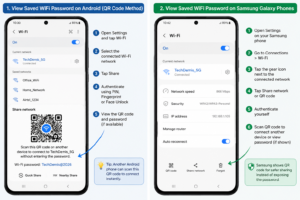
This is the easiest and safest method for most Android users.
Step 1: Open Settings
Launch the Settings app on your Android phone.
Step 2: Go to Network Settings
Depending on your device, tap one of the following:
- Network & Internet
- Connections
- WiFi
- WLAN
Step 3: Select the Connected WiFi Network
Tap the WiFi network you’re currently connected to.
If you’re looking for an older network, open Saved Networks if your device offers this option.
Step 4: Tap “Share”
You’ll usually see a Share button.
Android will ask you to verify your identity using your fingerprint, PIN, or face unlock.
Step 5: View the QR Code
After verification, your phone displays a QR code for the WiFi network.
On many Android devices, you’ll also see the actual WiFi password displayed below the QR code.
If the password isn’t shown, another Android phone can scan the QR code to join the network without entering the password manually.
Why This Method Is Recommended
- No third-party apps required
- Completely secure
- Works on most Android 10+ devices
- Doesn’t require root access
- Takes less than one minute
Method 2: Find Saved WiFi Password on Google Pixel Phones
Google Pixel devices offer one of the simplest ways to access saved WiFi details.
Steps
- Open Settings.
- Tap Network & Internet.
- Select Internet.
- Tap your connected WiFi network.
- Choose Share.
- Verify your identity.
- The QR code appears, and on supported versions, the password is displayed beneath it.
This method works on most recent Pixel devices running Android 12, Android 13, Android 14, Android 15, and later versions.
Method 3: View Saved WiFi Password on Samsung Galaxy Phones
Samsung’s One UI includes an easy sharing feature for WiFi networks.
Steps
- Open Settings.
- Tap Connections.
- Select WiFi.
- Tap the gear (⚙️) icon beside your connected network.
- Choose QR Code or Share (depending on your One UI version).
- Authenticate using your fingerprint or PIN.
- Share the QR code with another device or view the password if your software version displays it.
Tip: If you don’t see the password directly, another Android device can scan the QR code to connect instantly.
Why You May Not See the Password
Some phone manufacturers focus on security and only display a QR code instead of revealing the password in plain text.
This doesn’t mean the feature is missing—it simply means the device prefers secure sharing over exposing the password.
In these cases, using the QR code is the safest and easiest option.
Common Mistakes to Avoid
When trying to view a saved WiFi password, many users make avoidable mistakes:
❌ Downloading random “WiFi password recovery” apps from unknown sources.
❌ Rooting the phone just to see a saved password.
❌ Using apps that promise to reveal passwords for networks you’ve never connected to.
❌ Sharing your home WiFi password publicly.
For most users, the built-in Android settings are all that’s needed.
What’s Coming in Part 2
In the next part, we’ll cover:
- How to find saved WiFi passwords on Xiaomi, Redmi, and POCO phones
- OnePlus, Oppo, Vivo, and Realme methods
- How to view passwords for previously saved networks
- Can Google Password Manager help?
- What to do if the Share option is missing
- Is rooting your phone worth it?
- Security and privacy best practices
- Troubleshooting common issues
Method 4: Find Saved WiFi Password on Xiaomi, Redmi & POCO Phones (HyperOS / MIUI)
If you’re using a Xiaomi, Redmi, or POCO device, the process is quite simple. Most devices running MIUI 12+, MIUI 13+, HyperOS, or newer versions allow you to share your connected WiFi network using a QR code.
Steps
- Open Settings.
- Tap WiFi.
- Select the connected WiFi network.
- Tap Share.
- Verify your identity using your fingerprint, PIN, or pattern.
- A QR code will appear.
On some devices, the password may also be displayed. If not, another Android phone can scan the QR code to join the network.
Method 5: Find Saved WiFi Password on OnePlus Phones
OnePlus devices running OxygenOS provide a similar sharing feature.
Steps
- Open Settings.
- Tap WiFi & Network.
- Select the connected network.
- Tap Share.
- Authenticate yourself.
- View or share the WiFi QR code.
The exact layout may vary depending on your OxygenOS version.
Method 6: View Saved WiFi Password on Vivo, Oppo & Realme Phones
Most Vivo, Oppo, and Realme phones now include built-in WiFi sharing.
Steps
- Open Settings.
- Tap WiFi.
- Select the connected WiFi.
- Tap Share Network or QR Code.
- Complete security verification.
- Share the QR code or view the password if supported.
If your device doesn’t display the password, use the QR code to connect another trusted device.
Can You View Passwords for Previously Saved Networks?
Yes—but it depends on your Android version and phone manufacturer.
Some phones include a Saved Networks section where previously connected WiFi networks are listed.
To check:
- Open Settings.
- Go to WiFi.
- Tap Saved Networks (if available).
- Select the desired network.
- Tap Share.
If your device supports it, you’ll be able to view or securely share the password.
What If the “Share” Option Is Missing?
If you don’t see the Share button, don’t panic.
Possible reasons include:
- You’re using Android 9 or an older version.
- Your phone manufacturer removed the feature.
- Your software needs an update.
- You’re not currently connected to the network.
- Your device has custom security restrictions.
Try These Solutions
- Update Android to the latest version.
- Restart your phone.
- Forget and reconnect to the WiFi network (only if you already know the password).
- Check for a software update from your phone manufacturer.
Can Google Password Manager Show WiFi Passwords?
No.
Google Password Manager is designed to store login credentials for websites and apps. It does not store or display WiFi passwords saved on your Android device.
If you’re looking for a WiFi password, the correct place is your phone’s WiFi settings, not Google Password Manager.
Do You Need to Root Your Android Phone?
For most users, No.
Years ago, rooting was often required to access saved WiFi passwords. Today, Android includes official tools for sharing and viewing WiFi credentials on many devices.
Rooting can:
- Void your warranty.
- Reduce device security.
- Cause banking or payment apps to stop working.
- Increase the risk of malware.
Unless you have a specific technical reason, it’s best to avoid rooting your phone just to access WiFi information.
Security Tips When Sharing WiFi Passwords
Sharing your WiFi password may seem harmless, but it’s important to do it securely.
Here are a few best practices:
- Share your password only with people you trust.
- Prefer QR code sharing over sending the password in messages.
- Change your WiFi password if you suspect unauthorized access.
- Use WPA2 or WPA3 encryption whenever possible.
- Keep your router’s firmware updated.
A secure home network helps protect your devices and personal information.
Troubleshooting Common Problems
I can’t see the password.
Some Android devices only display a QR code instead of showing the password. This is a manufacturer-specific security decision.
The Share button isn’t available.
Check whether your phone is running Android 10 or later. If not, the feature may not be supported.
The QR code doesn’t work.
Increase your screen brightness and ensure the other device’s camera is focused properly. You can also try using Google Lens or another QR code scanner.
I forgot the WiFi password and no device is connected.
If no device has the network saved, the easiest solution is to log in to your router’s admin panel or contact your internet service provider for assistance.
📌 Related Reads
Tech Demis Explained: Technology Evolution, Decline & Future Trends
Tech Demis: A Complete Guide to Modern Technology and Digital Innovation
Conclusion
Finding a saved WiFi password on Android has become much easier thanks to built-in features introduced in recent Android versions. Whether you use a Samsung Galaxy, Google Pixel, Xiaomi, OnePlus, Vivo, Oppo, or Realme device, the safest approach is to use your phone’s official WiFi Share option.
Avoid downloading unknown “WiFi password recovery” apps or rooting your device unless absolutely necessary. Built-in Android tools are faster, more secure, and designed to protect your privacy.
By following the steps in this guide, you can safely access or share your saved WiFi network whenever needed, while keeping your personal data and network secure.
Frequently Asked Questions (FAQs)
1. Can I see my saved WiFi password without installing an app?
Yes. Most Android 10 and newer devices let you view or securely share saved WiFi passwords using the built-in WiFi settings.
2. Does this method work on Samsung phones?
Yes. Most Samsung Galaxy devices running recent versions of One UI support WiFi sharing through QR codes.
3. Can I find WiFi passwords for networks I’ve never connected to?
No. You can only view or share passwords for networks that your device has already saved or that you have permission to access.
4. Is rooting necessary?
No. Modern Android versions provide official ways to access or share saved WiFi details without rooting.
5. Why can’t I see the password on my phone?
Some manufacturers display only a QR code instead of the actual password for security reasons.
6. Can I use third-party WiFi password apps?
Be cautious. Many apps claiming to reveal WiFi passwords are misleading or require root access. Stick to your phone’s built-in settings whenever possible.
7. Is it safe to share my WiFi password using a QR code?
Yes. Sharing through the built-in QR code feature is generally safer than sending the password in plain text.
8. What should I do if I still can’t access the password?
If none of the methods work, log in to your router’s administration page using the router’s credentials or contact your internet service provider for help.




[…] still configure devices with broad, one-size-fits-all defaults. That’s where good Android tips come in: a handful of small adjustments can meaningfully change how your phone feels to use every […]