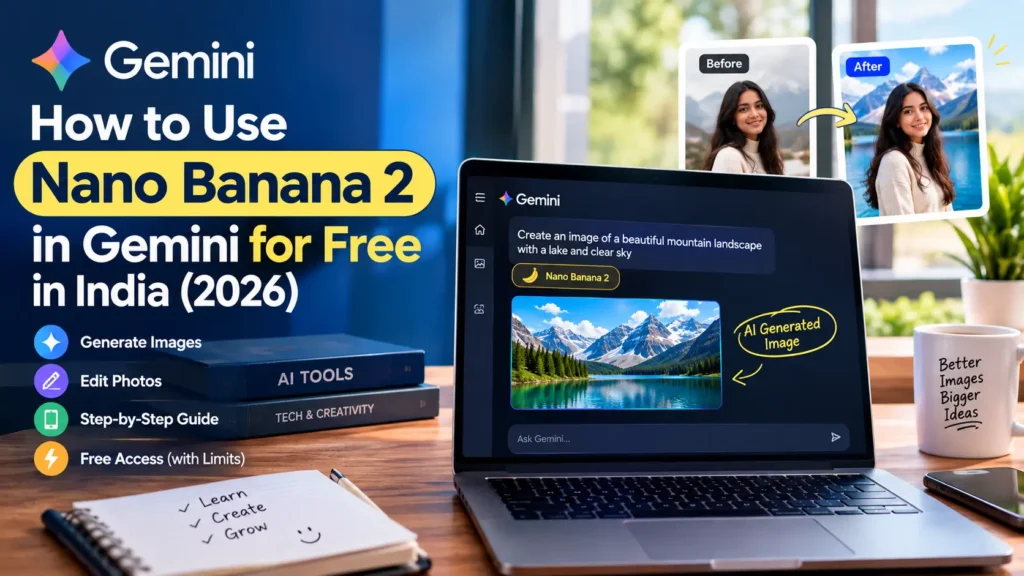
Want to create realistic AI images without paying for expensive design software? Google Gemini makes this possible with Nano Banana 2, an AI image generation and editing model that turns simple text instructions into visual content.
You can use it to create blog featured images, social media graphics, product concepts, illustrations, and more. You can also refine generated images by asking Gemini to change the background, lighting, colors, or composition.
The good news is that eligible users in India can access AI image generation through Gemini without purchasing a paid subscription. However, free access has usage limits, and some advanced options require a paid plan.
In this guide, you will learn how to use Nano Banana 2 in Gemini for free in India, how to write effective prompts, how to edit photos, and how to fix common image-generation problems.
What Is Nano Banana 2?
Nano Banana 2 is Google’s AI image generation and editing model, also known as Gemini 3.1 Flash Image. It can generate images from written instructions and make changes to images through conversational prompts.
For example, you can ask Gemini to create a realistic gaming setup, a professional product photograph, or a travel illustration. You can then request changes without manually editing every detail.
Some of its key capabilities include:
- Text-to-image generation: Create images from written descriptions.
- AI photo editing: Upload an eligible image and describe the changes you want.
- Improved text rendering: Generate graphics containing text, although results should still be checked.
- Detailed instructions: Specify lighting, background, colors, style, and composition.
- Character consistency: Maintain a similar appearance for a character across supported image workflows.
- Conversational editing: Refine an image through follow-up instructions.
If you want to compare Gemini with other image-generation services, read our guide to Best Free AI Image Generators Online in 2026. It can help you understand which tools may suit different creative tasks.
Is Nano Banana 2 Free in India?
Yes, eligible users in India can use Gemini’s image-generation features without purchasing a Google AI subscription. However, free access does not mean unlimited image generation.
Google can apply usage limits based on your account, plan, current availability, and service demand. These limits may change over time.
| Feature | Free access | Paid Google AI plan |
|---|---|---|
| Generate AI images | Available, subject to limits | Available with higher limits on eligible plans |
| Refine generated images | Subject to access and limits | Subject to plan limits |
| Upload and edit photos | Available to eligible users | Available, subject to applicable limits |
| Download images | Up to 1K resolution without an AI plan | 2K downloads available with an eligible plan |
| Nano Banana Pro regeneration | Generally requires an eligible paid plan | Available with eligible plans |
Before paying, try the free version and see whether its features meet your needs. A subscription is worth considering only if you regularly reach usage limits or need capabilities included in a paid plan.
You can check the latest availability and feature requirements in Google’s official Gemini image-generation guide.
What Do You Need Before Using Nano Banana 2?
Getting started is straightforward. You generally need:
- A Google Account.
- A working internet connection.
- Access to Gemini in your country.
- A supported browser or the Gemini mobile app.
- A clear idea of the image you want to create.
You do not need professional design skills or a separate Nano Banana 2 application.
Google applies age requirements to image generation and editing. Its current guidance says image generation is available to eligible users aged 13 or older, subject to local requirements, while image editing requires users to be at least 18. School and work accounts may have additional restrictions.
How to Use Nano Banana 2 in Gemini for Free: Step-by-Step
Follow these steps to generate your first image.
Step 1: Open Google Gemini
Visit Google Gemini in your browser or open the official Gemini app on a supported mobile device.
Sign in with your Google Account. Make sure you are using the official service rather than a third-party website claiming to provide unlimited access.
Step 2: Open the Image Generation Tool
On a computer, open Gemini and look for the sidebar. Select the Images option if it appears in your interface.
On mobile, look for the image-creation option in the tools menu. The exact layout can vary by device and account.
If the interface looks different, consult Google’s official instructions rather than relying on an outdated screenshot.
Step 3: Select the Available Model
Nano Banana 2 is associated with Gemini’s Flash and Pro model selections. Nano Banana 2 Lite is associated with Flash-Lite.
Choose the available image-generation option and check the selected model if a model menu is displayed. You do not need a paid subscription simply to try standard image generation, although certain advanced features may be restricted.
Step 4: Write a Clear Prompt
A prompt is the instruction you give Gemini to describe the image you want.
A vague prompt such as “Create a gaming image” leaves many details open to interpretation.
Instead, try this:
“Create a realistic gaming desk setup in a dark room. Include a mechanical keyboard, gaming mouse, large monitor, and blue LED lighting. Use cinematic lighting, realistic textures, and a wide composition. Keep the main subject on the right and leave empty space on the left. No text or logos.”
This prompt gives Gemini more information about the subject, setting, lighting, and composition.
For more ideas, explore our guide to Best Free AI Tools in 2026: Complete Guide. It covers other AI tools that can support different creative and productivity tasks.
Step 5: Generate the Image
Submit your prompt and wait for Gemini to process it.
When the image appears, compare it with your original instructions. Check the main subject, proportions, background, text, and smaller details.
AI-generated images can contain visual mistakes, so do not assume every result is ready for publication.
Step 6: Refine the Image
If the first result is close to what you wanted, use a follow-up instruction instead of starting from scratch.
For example, you can ask Gemini to:
- Make the lighting warmer.
- Change the background to a clean studio.
- Move the subject to the right.
- Remove unnecessary objects.
- Make the image more realistic.
- Leave space for a headline.
Try to make one or two specific changes at a time. This makes it easier to evaluate the result.
Step 7: Download Your Image
Once you are satisfied with the image, use the download option to save it.
For a blog featured image, you may want to resize it to 1200 × 628 pixels if that matches your website’s layout. You can also compress the image and convert it to WebP before uploading it to WordPress.
7 Nano Banana 2 Prompts You Can Try
The following prompts are starting points. Change the subject, colors, style, and dimensions to suit your project.
1. AI Technology Blog Image
Prompt:
“Create a high-quality editorial image about artificial intelligence in everyday life. Show a person using a laptop with subtle AI-inspired visuals on the screen. Use realistic photography, natural lighting, a professional technology-blog aesthetic, and a wide 16:9 composition. No logos or watermarks.”
2. Product Photography
Prompt:
“Create a premium studio photograph of a wireless gaming mouse on a dark desk. Add soft blue accent lighting, realistic material textures, controlled shadows, and a minimalist technology-advertising style. Keep the product as the main focus. Do not add brand names or text.”
3. YouTube Thumbnail Background
Prompt:
“Create a dramatic YouTube thumbnail background about AI technology. Show a futuristic computer workstation with blue and purple lighting. Place the main subject on the right and leave clear empty space on the left for a headline. Use realistic details and a wide composition. No text or logos.”
4. Travel Photography
Prompt:
“Create a realistic travel photograph of a tropical beach in Southeast Asia at sunrise. Include turquoise water, soft golden light, palm trees, and a few distant boats. Use natural colors, detailed scenery, and professional travel-magazine photography.”
5. Educational Graphic
Prompt:
“Create a clean educational infographic layout explaining how artificial intelligence works. Show simple visual stages for data, an AI model, and an output. Use a white background, blue accents, balanced spacing, and clear labels. Avoid tiny text.”
Always verify the factual details before publishing an AI-generated infographic.
6. Social Media Graphic
Prompt:
“Create a modern social media graphic about five useful AI productivity habits. Use a clean technology aesthetic, readable typography, simple icons, balanced spacing, and a square layout. Keep the design professional and easy to understand.”
Review the generated text carefully because AI can still make spelling or layout errors.
7. Cinematic Gaming Setup
Prompt:
“Create a cinematic gaming room with a mechanical keyboard, gaming mouse, ultrawide monitor, and comfortable chair. Use subtle RGB lighting, realistic textures, moody blue tones, and a premium gaming aesthetic. Wide 16:9 composition, no logos or watermarks.”
How to Edit an Existing Photo With Nano Banana 2
Nano Banana 2 can also help you modify an existing image when image editing is available for your account.
Follow these steps:
- Open Gemini and sign in.
- Open the image tool or select an existing generated image.
- Upload the image you want to edit, if the option is available.
- Describe the changes you want.
- Submit the instruction and review the result.
- Request additional changes if needed.
- Download the finished image.
For example, upload a product photograph and ask Gemini to replace the background with a clean studio setting while preserving the product’s shape and color.
You could also upload a travel photo and request warmer lighting or a more cinematic appearance.
Keep your instructions specific. If you request too many unrelated changes at once, the model may not preserve every detail.
Only upload images you have permission to use. Avoid sharing sensitive personal information or private photos unless you understand the service’s privacy implications.
How to Get Better Results From Nano Banana 2
If the first image is not quite right, improve your prompt before giving up.
Describe the Subject
Explain exactly what should appear in the image. Instead of saying “a person at a desk,” describe the person’s activity, setting, clothing, and position.
Specify the Style
Use phrases such as realistic photography, watercolor illustration, editorial design, 3D render, or cinematic lighting to communicate the visual style you want.
Explain the Composition
Tell Gemini where the main subject should appear and whether you need empty space for text.
This is particularly useful for blog thumbnails, banners, and YouTube graphics.
Mention What to Avoid
If you do not want extra objects, logos, or watermarks, say so in the prompt. This can help reduce unwanted elements, although it cannot guarantee their absence.
Make Changes Gradually
If an image is mostly correct, ask for one or two targeted adjustments. For example, change the background first and then refine the lighting.
If you also need AI tools for writing scripts, editing drafts, or planning content, read our article on Best AI Tools for Content Writers in 2026.
Nano Banana 2 vs Nano Banana Pro: What Is the Difference?
Nano Banana 2 and Nano Banana Pro are related models designed for different creative needs.
| Feature | Nano Banana 2 | Nano Banana Pro |
|---|---|---|
| Main purpose | Fast image generation and editing | More advanced image refinement |
| Access | Available through Gemini, including free access with limits | Available with eligible Google AI plans |
| Speed | Designed for fast generation | Intended for specialized, detailed tasks |
| Creative control | Supports detailed prompts and edits | Offers additional controls for supported workflows |
| Best suited for | Everyday images and quick edits | More demanding visual projects |
For beginners, Nano Banana 2 is a sensible starting point. You can practise prompt writing, experiment with styles, and create useful visuals without immediately purchasing a subscription.
Nano Banana Pro may be worth considering if you regularly need its additional capabilities. Check the current plan details before upgrading because features and limits can change.
Nano Banana 2 Not Working? Try These Fixes
Image generation may sometimes fail, the image tool may be missing, or Gemini may tell you that you have reached a usage limit.
Here are a few things to check.
You Have Reached the Usage Limit
Free image generation has limits. If Gemini says you have reached yours, follow the reset information shown in your account or wait until access becomes available again.
Repeatedly submitting the same prompt will not necessarily restore access.
The Image Tool Is Missing
Check that you are signed in and using the correct Gemini interface. Your account type, age eligibility, or feature availability may affect what you can see.
You can also try updating the mobile app or opening Gemini in a supported browser.
Your Prompt Is Too Complicated
Break a long prompt into smaller instructions. Start with the main subject and style, then refine the image after the first result.
The Result Contains Incorrect Text
AI-generated text may still contain spelling errors or distorted letters. Try simplifying the wording, generating the background separately, or adding the final text in an image editor.
The Image Does Not Match Your Request
Use a follow-up instruction that identifies the exact problem. For example, ask Gemini to change the lighting without altering the subject.
For account-specific problems, consult the official Gemini Help Center.
Can You Use Nano Banana 2 Images on a Website?
AI-generated images can be useful for blog illustrations, featured images, tutorials, product concepts, and social media graphics. However, review the image before publishing it.
Check accuracy: Look for visual errors, misleading details, unwanted logos, and incorrect text.
Respect rights and privacy: Follow Google’s terms and avoid using uploaded material in ways that violate copyright, privacy, or other rights.
Optimize the image: Resize it to suit your website, compress it, and use an appropriate format such as WebP where supported.
Write descriptive alt text: Describe what the image actually shows instead of stuffing it with keywords.
For example, if the image shows a laptop displaying an AI image generator, a natural alt text would be “Laptop displaying an AI image generation interface.”
Remember that an AI-generated image is not automatically factually accurate. If you create a graphic about science, health, finance, or technology, verify the information separately.
Frequently Asked Questions
Is Nano Banana 2 free in India?
Eligible users in India can generate images through Gemini without a paid Google AI subscription. Free usage limits apply and may change.
How do I access Nano Banana 2 in Gemini?
Open Gemini, sign in, select the image-generation option, enter a detailed prompt, and submit it. The interface may vary by device and account.
Do I need a separate Nano Banana 2 app?
No separate Nano Banana 2 app is required when using the feature inside Gemini. You can access Gemini through its official website or supported mobile app.
Can Nano Banana 2 edit existing photos?
Yes, where image editing is available. You can upload a photo and describe the changes you want. Google’s current guidance requires users to be at least 18 for image editing.
Why has Nano Banana 2 stopped generating images?
You may have reached your usage limit, encountered a temporary service issue, or lost access to a feature. Check Gemini’s message for details and try again when access becomes available.
Is Nano Banana 2 better than Nano Banana Pro?
They serve different needs. Nano Banana 2 focuses on fast image generation and editing, while Nano Banana Pro provides additional capabilities for eligible users on paid plans.
Can I use Nano Banana 2 images commercially?
Before using images commercially, review Google’s applicable terms, the rights associated with uploaded material, and relevant third-party intellectual property restrictions. Do not assume every generated output is automatically free of rights-related concerns.
Final Verdict
Nano Banana 2 makes AI image generation accessible to people who want to create visuals without learning a complicated design program. You can start with a free Gemini account, describe your idea, generate an image, and refine it through follow-up instructions.
For better results, focus on clear prompts, specific editing requests, and careful image review. If you are creating content for a website, check the facts, optimize the image size, and write useful alt text before publishing.
Most importantly, remember that free access has limits. Start with the features available to your account and consider a paid plan only if you genuinely need higher usage limits or advanced options.